
Stream up to 3 music channels simultaneously to hundreds of listeners — no hardware, no app, no hassle. Just scan, connect, and dance.
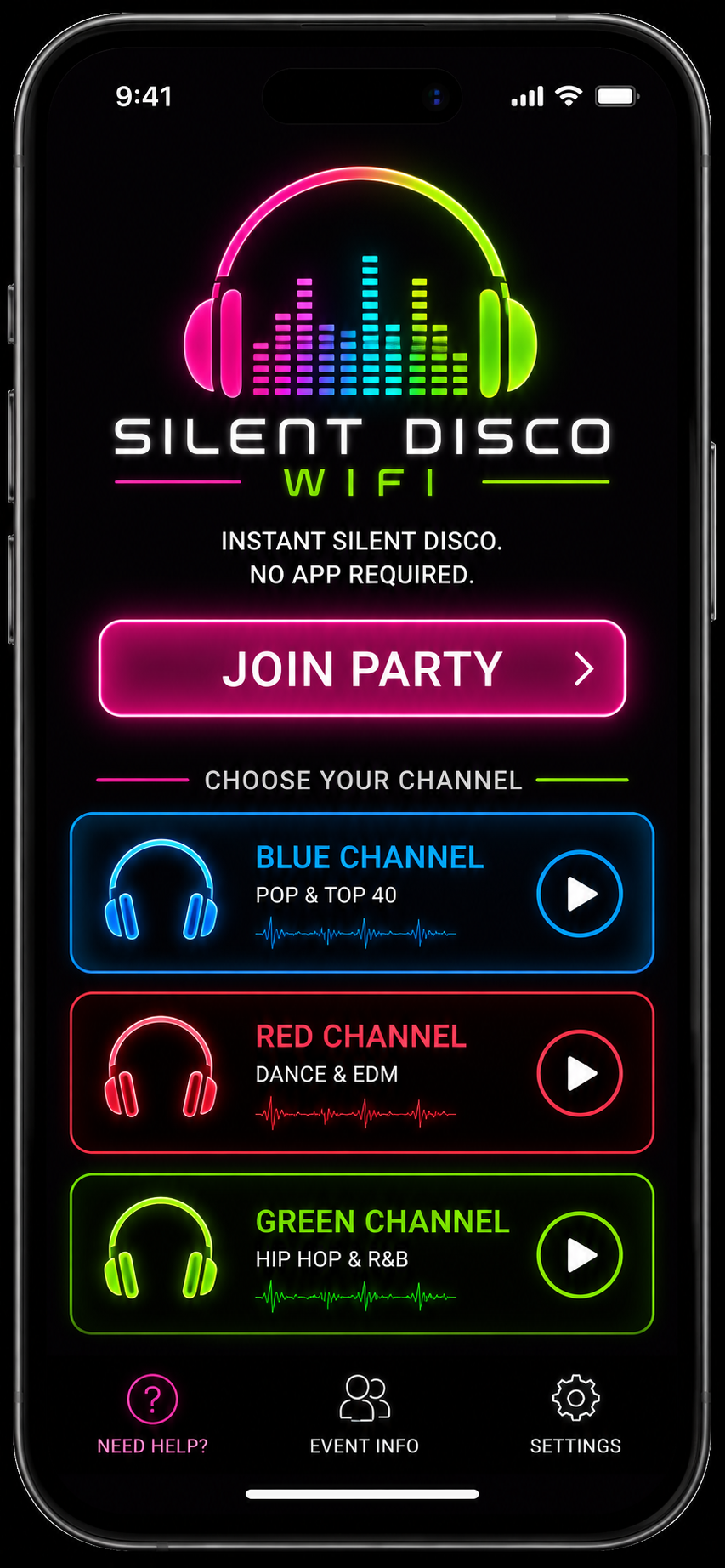
Run Blue, Red, and Green channels simultaneously. Patrons choose their channel from any browser — no app install required.
SDAP delivers sub-second synchronisation across all devices. Every listener hears the same beat at the same time.
Drop a folder of MP3s and let the AI DJ handle the rest — or stream live from any USB audio input.
iPhone, Android, desktop — if it has a browser it works. No app store, no Bluetooth pairing, no setup for guests.
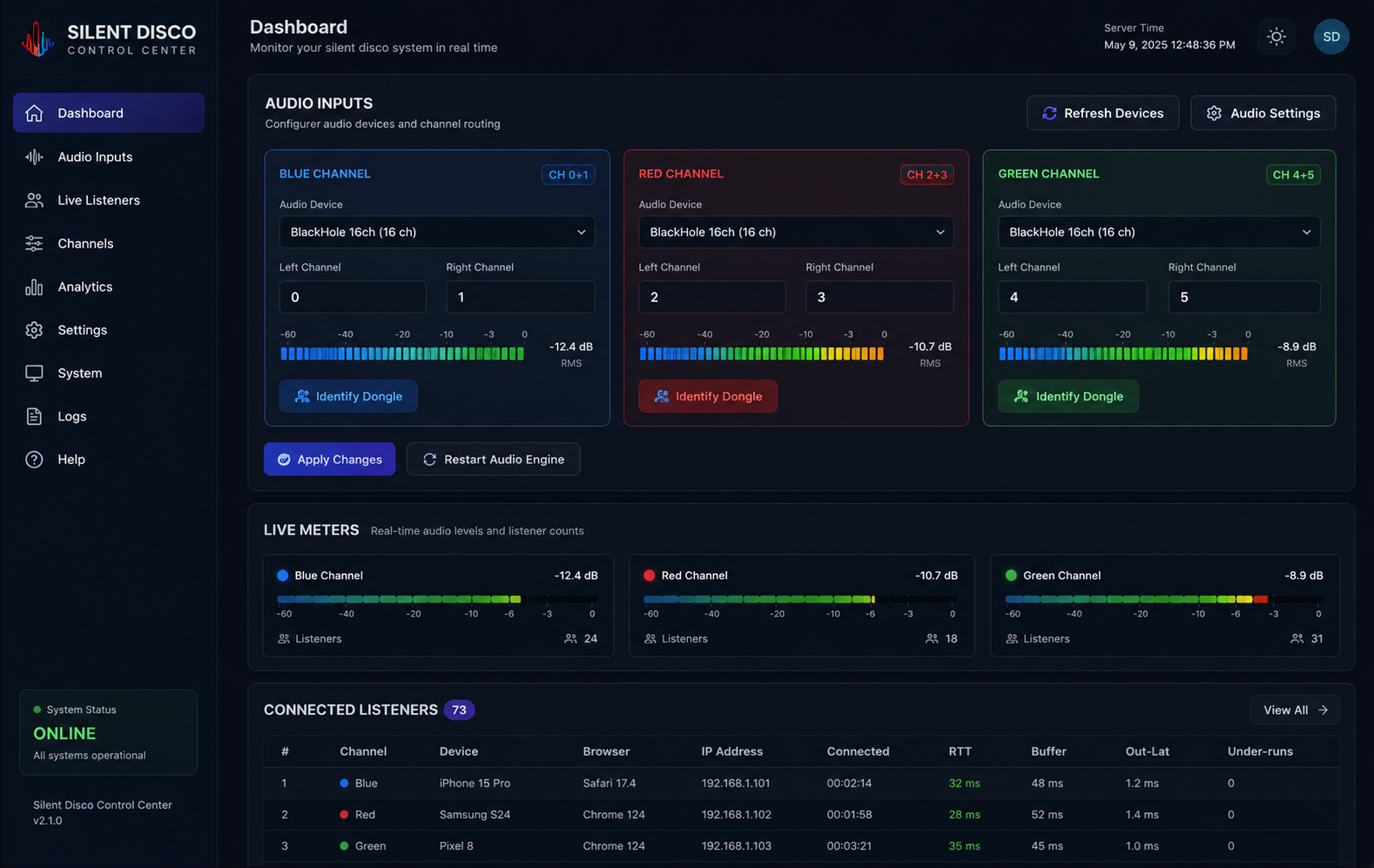
See every connected listener, their device, buffer health, and channel in real time from the admin panel.
Runs on a standard MacBook or Mac mini. Ethernet to WiFi — no special networking required.
Your music. Your channel. Your night.
Follow these simple steps to get connected, choose your channel, and enjoy the music!
Bring your smartphone and your favorite wired or wireless headphones.
Scan the Wi-Fi QR code around the venue or connect to the SilentDiscoWiFi network.
Then scan the Silent Disco QR code to open the Silent Disco web app.
On the home page, press the JOIN button to get in on the fun!
Select from three separate music streams. Each channel has a different DJ, playlist, or genre.
Select your channel and start enjoying the music your way!
If you get disconnected or lose connection, just hit the refresh button to reconnect.
Ask one of the Mr's of Entertainment for assistance.
Silent Disco WiFi is currently in beta. You may experience occasional glitches as we continue to improve your experience.
Download Silent Disco WiFi for macOS and open it. No configuration wizard, no command line. The admin dashboard opens automatically in your browser.
On first launch the app silently installs BlackHole — a virtual audio cable that lets any app on your Mac send its audio to a Silent Disco channel. No downloads or settings needed from you.
Each of the three channels can use a different source simultaneously.
Point a channel at a folder of MP3s. The built-in player auto-shuffles and crossfades all night — no manual DJ required.
Load one MP3, WAV, FLAC, or AAC file and loop it. Perfect for a branded sound or a pre-mixed set.
Plug in your DJ controller, mixer, or USB audio interface. The software detects it and streams the live mix directly to that channel.
Open admin → Channels. Rename Blue/Red/Green to anything (e.g. "House", "Latin", "Chill"). Guests see the name on their channel selector. Assign a source to each channel and adjust gain as needed.
The app reads your venue network and generates the correct patron URL automatically. Open admin → Settings → Listener QR Code. Download a high-res PNG or vector SVG and print at any size. Post them around the venue.
Post the QR codes, start your music, and the dashboard shows every listener connecting in real time. Watch the VU meters, track which channel each guest is on, and restart any stream with one click if something gets stuck.
Consumer ISP router or single home AP. Fine for testing and small private events.
2.4 GHz: 15–20 max before audio stutters. 5 GHz: 25–30 with good placement. Interference from other WiFi networks in the building will reduce this further.
Ubiquiti, TP-Link Omada, Cisco Meraki, or quality mesh system (Eero Pro, Orbi).
5 GHz with 80 MHz channels easily handles 60–80 concurrent listeners. Multiple APs multiply capacity — 3 APs = 150–300+ listeners total with proper placement.
Professional venue WiFi with dedicated SSID per event, channel planning, and roaming.
For large venues: create a dedicated SSID for Silent Disco on 5 GHz. Disable band steering so all devices stay on 5 GHz. Set DTIM interval to 1 for lowest latency.
Run an Ethernet cable from the venue router to the Mac running Silent Disco WiFi. This eliminates any WiFi jitter on the server side — only clients use wireless.
If your router supports multiple SSIDs, create one called "Silent Disco" just for the event. This prevents other devices from competing for bandwidth and makes it easier for guests to find the network.
Walk the venue with a phone connected to the event WiFi and open a streaming page before doors open. Identify dead zones and reposition APs or add a repeater if needed.
If you only have a home router, keep guests under 25 on 2.4 GHz or under 35 on 5 GHz. For anything larger, rent or borrow a business-class AP — Ubiquiti APs start around $100 and are available at event rental shops.
If running on 2.4 GHz, Bluetooth on the same Mac can cause interference. Disable it in System Settings while the event is running.
The admin panel shows buffer health per listener. If multiple guests show "rebuffering" at the same time, it's a network issue — check AP placement before assuming software.
Any USB audio device that macOS recognises works. This includes Pioneer DDJ, Denon SC, Native Instruments, Rane mixers, and generic USB interfaces.
The admin Live Meters show real-time dB levels for each channel. Aim for peaks between −12 dB and −6 dB for the cleanest audio delivery to listeners.
You can change the audio source on any channel without interrupting other channels. Listeners will experience a 1–2 second gap on the switched channel while the new source connects.
The built-in DJ player is designed for unattended operation. Here's how to get the best results:
Our support team is available via email and phone for licensed operators. Include your license key and a brief description of the issue.
For fastest response, include your order confirmation number and describe what you were doing when the issue occurred.
All tiers include full software, updates, and email support. One license per installation.