🎛️ Connecting Your DJ Controller / Mixer
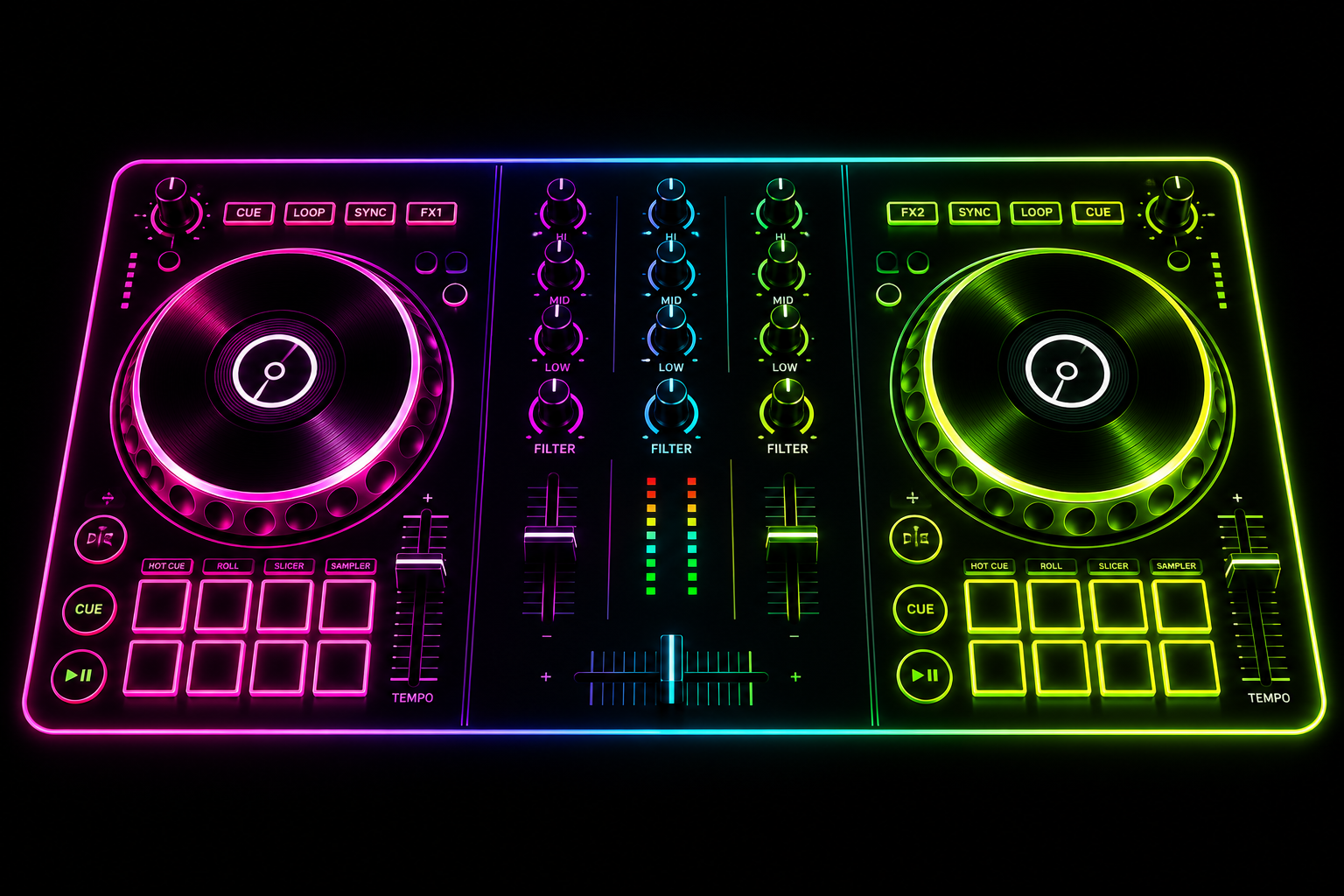
Any USB audio device that macOS recognises works. This includes Pioneer DDJ, Denon SC, Native Instruments, Rane mixers, and generic USB interfaces.
- Plug your controller or USB audio interface into the Mac
- Open the Silent Disco admin → Audio Inputs
- Click ↺ Refresh Devices
- Your device appears in the dropdown — select it for the channel you want (Blue, Red, or Green)
- Set the Left and Right channel numbers (usually 1 and 2 for the main mix output)
- Click Apply — audio starts streaming within 1–2 seconds
Tip: Use a separate USB audio interface (Roland, Focusrite, MOTU) rather than the controller's built-in USB audio if possible. Dedicated interfaces have lower latency and better driver support.
🎚️ Gain Staging
The admin Live Meters show real-time dB levels for each channel. Aim for peaks between −12 dB and −6 dB for the cleanest audio delivery to listeners.
- Too quiet (< −18 dB average): raise gain on the interface or channel card in admin
- Clipping (0 dB): reduce gain — clipping causes distortion on listeners' headphones
- The meters update every second — adjust on the fly without restarting
Tip: Set your mixer master output to roughly 70% of maximum, then fine-tune with the per-channel gain slider in the admin panel.
🔄 Switching Sources Mid-Event
You can change the audio source on any channel without interrupting other channels. Listeners will experience a 1–2 second gap on the switched channel while the new source connects.
- In admin → Audio Inputs, change the device or type for the channel
- Click Apply
- The channel restarts — other channels are unaffected
- Listeners on that channel auto-reconnect within seconds
Best practice: Announce channel switches to guests ("Red channel switching to live DJ in 30 seconds") so they're not caught off guard.
📁 DJ Player — Folder Mode Tips
The built-in DJ player is designed for unattended operation. Here's how to get the best results:
- Use 320 kbps MP3 or FLAC files — lower quality shows at high volumes
- Normalise your tracks before the event (use Apple Music's Sound Check or Audacity's normalize)
- Remove any tracks with sudden silence at the start — the crossfader works best with clean intros
- You can add/remove files from the folder while the player is running — it rescans on each new track
- Use the Skip button anytime to jump to the next track in the shuffle queue
⚠️ Troubleshooting Audio
- No audio on a channel: Check the meter — if flat, the source isn't feeding signal. Check your USB device selection and gain.
- Choppy or stuttering audio for all listeners: Network issue. Check WiFi signal strength across the venue and AP load.
- One listener choppy, others fine: That guest's device has a weak WiFi connection. Ask them to move closer to an AP or switch to 5 GHz.
- Audio cuts out briefly, then returns: Normal reconnect behaviour. If it happens repeatedly, check the buffer health column in the Listeners table.
- Distortion on all listeners: Input is clipping. Lower the gain on your mixer's master output or in the admin channel gain slider.
- Stream stuck after USB device reconnect: Open admin → Audio Inputs → click ↺ Refresh → re-select device → Apply.
📞 Need Help?
Our support team is available via email and phone for licensed operators. Include your license key and a brief description of the issue.
For fastest response, include your order confirmation number and describe what you were doing when the issue occurred.