Everything a DJ or venue operator needs to go live in under 5 minutes — software, audio routing, QR codes, and channels.
Download Silent Disco WiFi for macOS and open it. No configuration wizard, no command line. The admin dashboard opens automatically in your browser.
On first launch the app silently installs BlackHole — a virtual audio cable that lets any app on your Mac send its audio to a Silent Disco channel. No downloads or settings needed from you.
Each of the three channels can use a different source simultaneously.
Point a channel at a folder of MP3s. The built-in player auto-shuffles and crossfades all night — no manual DJ required.
Load one MP3, WAV, FLAC, or AAC file and loop it. Perfect for a branded sound or a pre-mixed set.
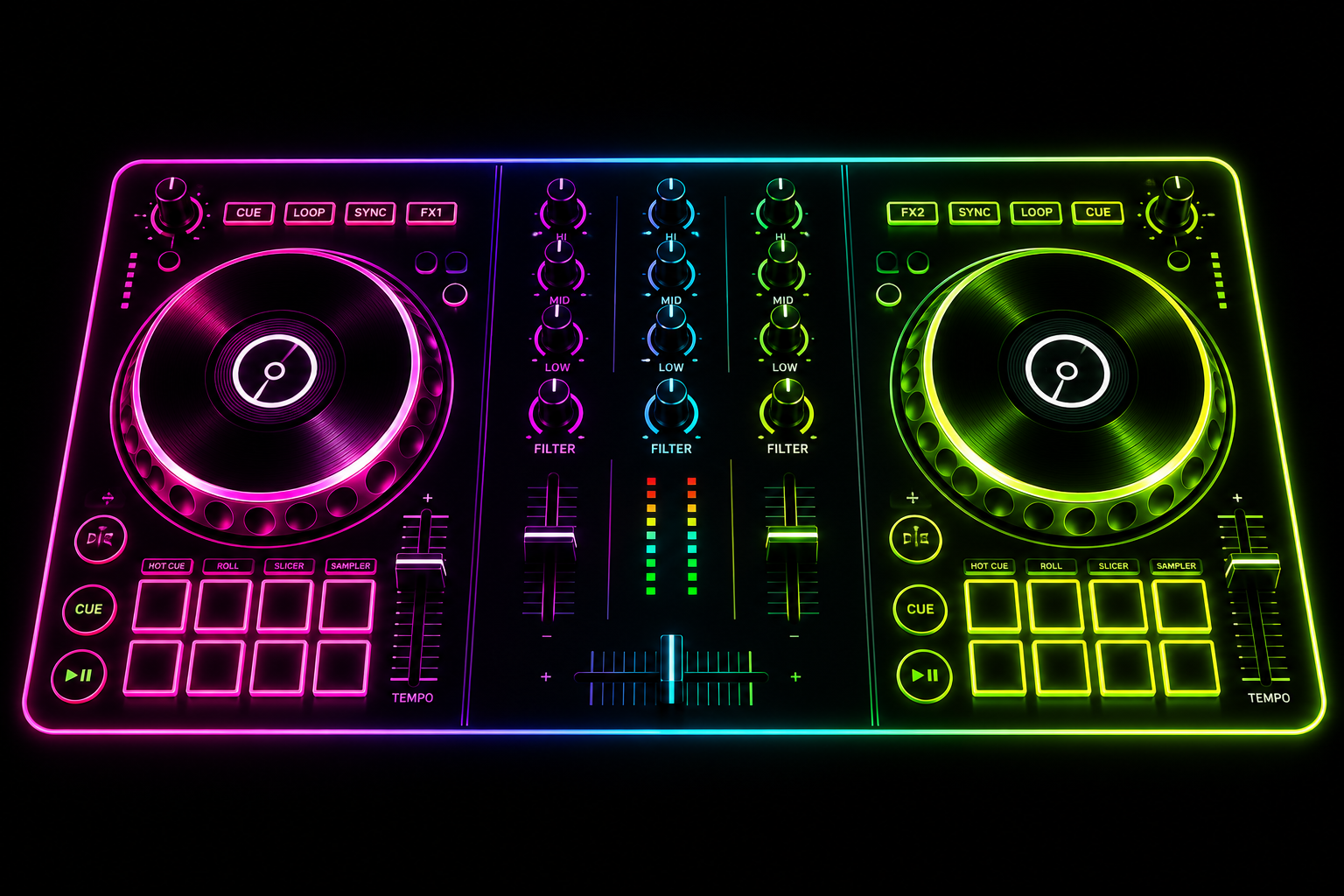
Plug in your DJ controller, mixer, or USB audio interface. The software detects it and streams the live mix directly to that channel.
Open admin → Channels. Rename Blue/Red/Green to anything (e.g. "House", "Latin", "Chill"). Guests see the name on their channel selector. Assign a source to each channel and adjust gain as needed.
The app reads your venue network and generates the correct patron URL automatically. Open admin → Settings → Listener QR Code. Download a high-res PNG or vector SVG and print at any size. Post them around the venue.
Post the QR codes, start your music, and the dashboard shows every listener connecting in real time. Watch the VU meters, track which channel each guest is on, and restart any stream with one click if something gets stuck.